
YouTube Queue Multi Screen
By Onizuka Nghĩa
Play YouTube on one screen while you build the queue on another. Nothing you click interrupts what is already playing.
- Free
- No account needed
- No data collected
- Works offline
Screenshots
About this extension
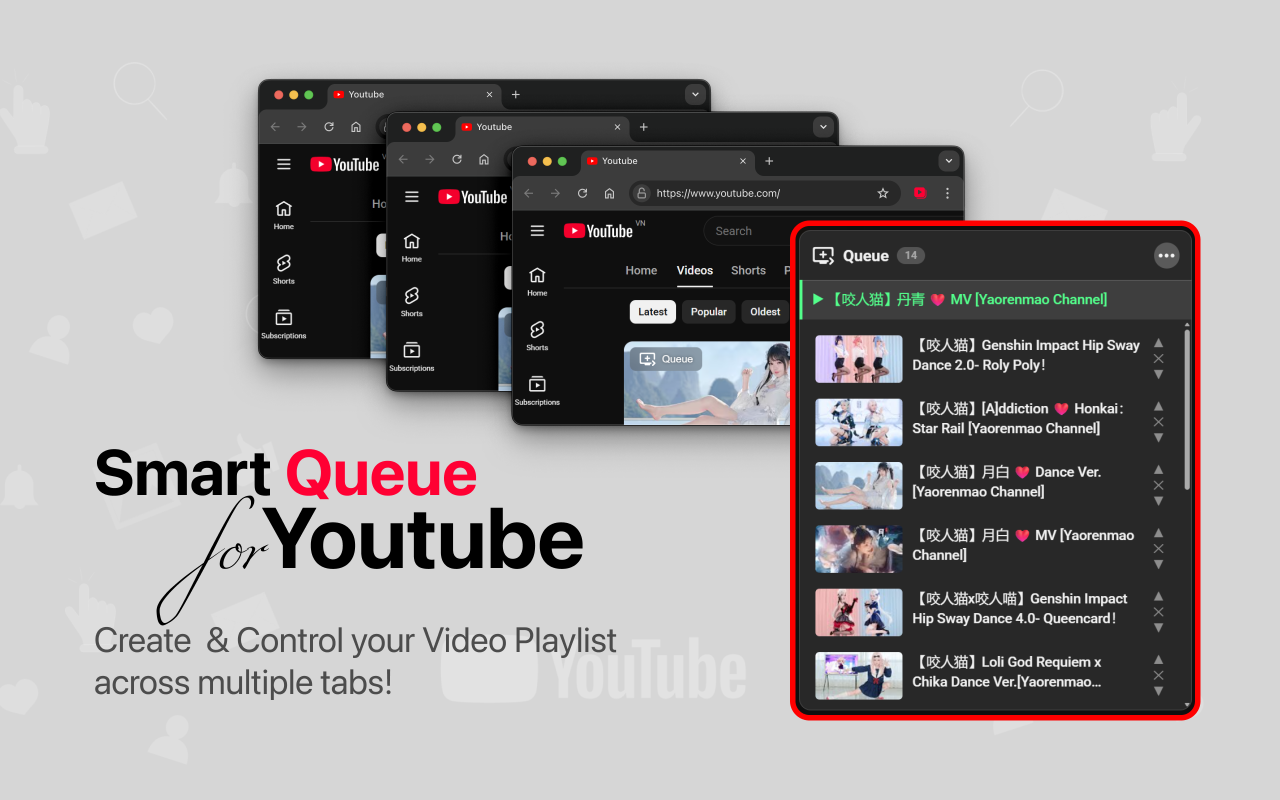
YouTube was built for one tab. The moment you open a second one to look for the next song, the video you were watching keeps its own ideas about what plays next. This extension splits the two jobs apart: one tab becomes the Main Player and never gets interrupted, while every other tab is free for browsing, searching and queueing.
Perfect for a two-monitor desk: music videos on the big screen, your hands on the small one.
Features
-
One-click queueing, everywhere
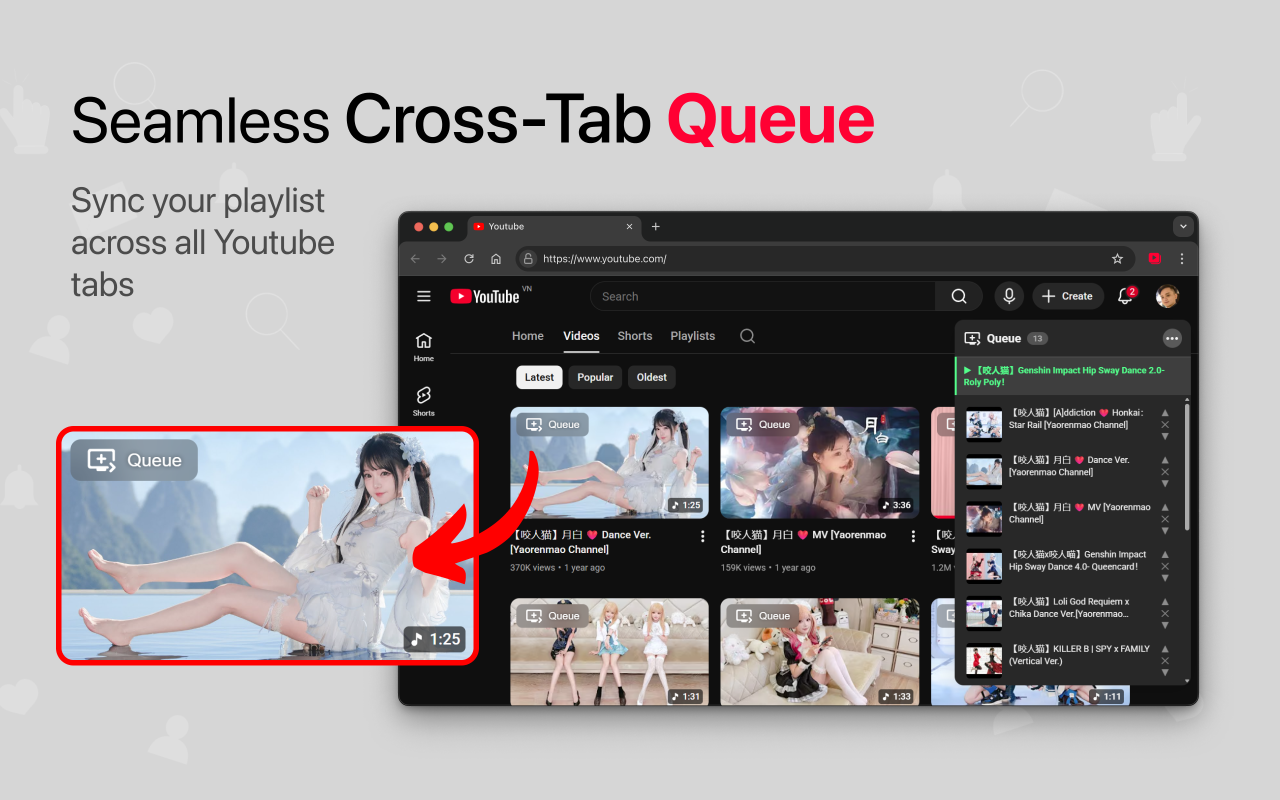
A Queue button sits on every video card — the home feed, search results, playlists, the watch sidebar, and the preview YouTube mounts over a thumbnail when you rest on it. The queue lives in one place, so adding from one window updates the panel in all the others straight away.
-
A dedicated Main Player
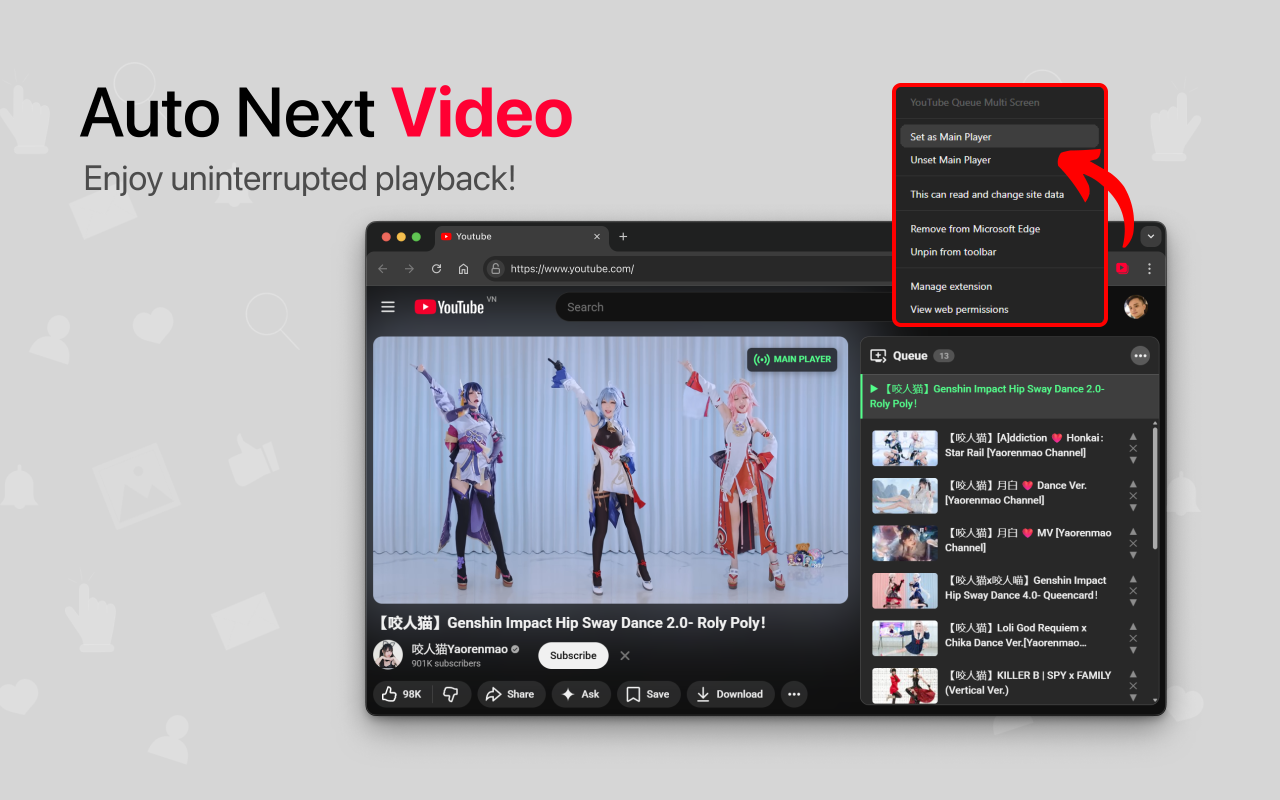
Right-click any YouTube tab, or use the popup, to mark it as the player. It carries a badge so you always know which tab is in charge, and you can pause, resume and re-enter fullscreen on it from the queue panel without leaving the tab you are browsing in.
-
Ads, handled from the other screen
An ad starts on the screen you are not touching. Press Skip Ad right in the queue panel: the Main Player sees out a run of back-to-back ads and a survey shown in place of one, then hands the video back where you left it at the speed you were watching, and the tab you are browsing never loses focus. Switch on Auto Skip Ad in the popup and all of that happens the moment a break starts, with no press from you — it is off until you turn it on, and wears an AUTO badge on the toolbar icon while it runs.
-
The next video, without the interruption
When a video ends the next one in the queue starts by itself, and YouTube's own autoplay suggestions are switched off so nothing jumps the line. The hand-off does not reload the page — the player is moved the same way YouTube moves it when you click a video in its own sidebar, so fullscreen is not dropped and re-entered and the picture never blanks out. A video is only ever taken off the queue once a player is confirmed to be on it, so a tab that was closed mid-song cannot take the video with it.
-
Always know what is next
A Next button in the panel header moves the queue on, and collapsing the list puts the title of that video beside it, scrolling gently if it is too long to fit. The playing screen announces it too, next to the MAIN PLAYER badge, for half a minute at a time — timed against the video's own clock, so pausing does not bring it back early.
-
A panel you can put anywhere
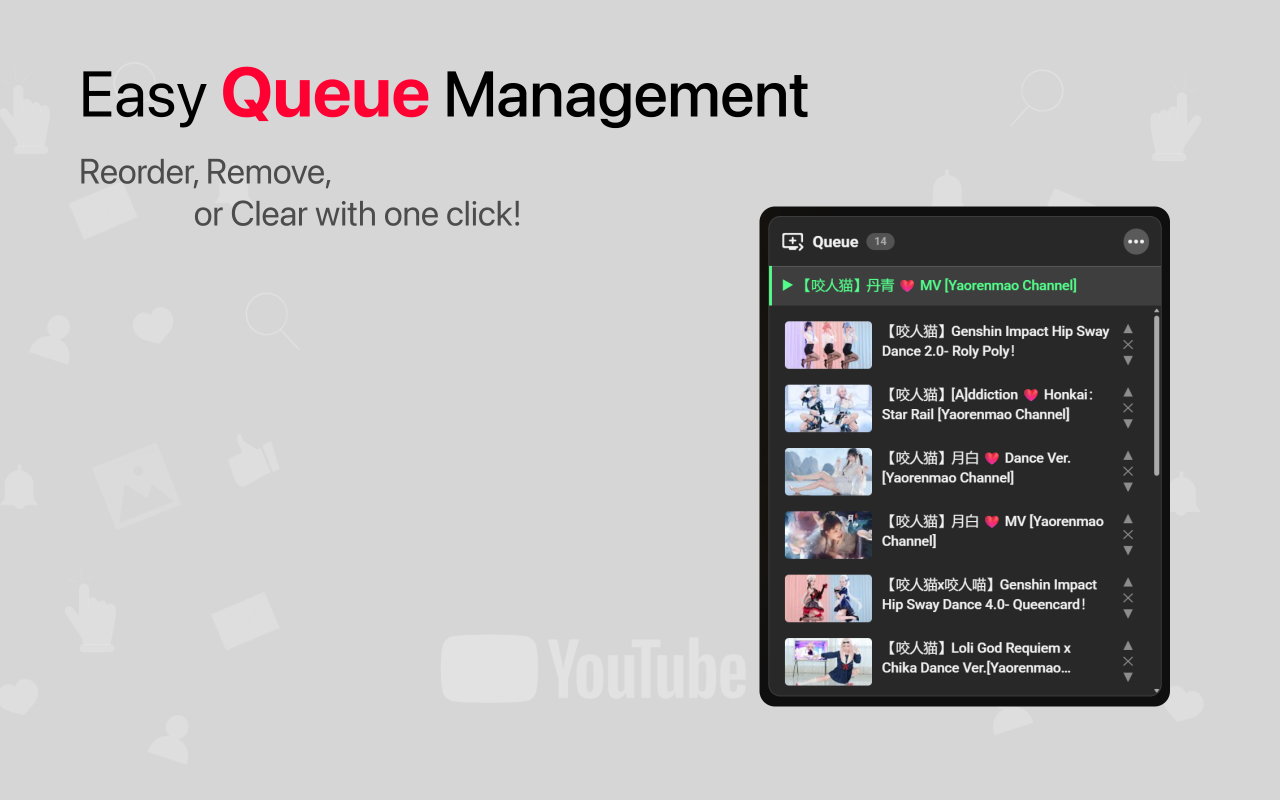
Grab a row by its handle and drop it anywhere in the queue, nudge it a step with the arrows, or remove it with one click. Drag the panel itself out of the way when it covers something you were reading — it keeps clear of the scrollbar, and near the bottom of the screen it grows upwards so the list is never cut off.
Getting started
- Open the YouTube video you want to watch and right-click the page, then choose Set as Main Player. That tab is now the screen.
- Move to a second tab or window and browse YouTube as usual. Hit Queue on anything you want to hear next.
- That is it. The Main Player works through the queue on its own; drag rows to reorder while it plays.
What's new
-
1.9 17 September 2026 Latest
Auto-next hands the player straight to the next video without reloading the page, and nothing leaves the queue until a player actually has it. Ads stitched into the video are skipped too, and the popup shows the time that saved you.
- ChangedAuto-next no longer reloads the page. The Main Player is moved to the next video the same way YouTube moves it when you click a video in its own sidebar, so the player is never torn down and built again: fullscreen is not dropped and re-entered, the picture does not blank out, and the wait between two videos is the wait for the video rather than for the page.
- FixedA video could be lost from the queue. It was taken off the moment the play command was sent, before anything confirmed a player had received it — so a Main Player tab that had just been closed, or was part-way through loading, swallowed the command and the video went with it. Nothing leaves the queue now until a tab reports it is playing that video.
- FixedTwo changes at once could undo each other. Queueing a video in one window while removing one in another could leave only one of the two, because both started from the queue as it stood before either had happened.
- ChangedTitles come from the video itself rather than from the card it was queued from. A card the title could not be read off used to put a video in the queue called simply “Video”.
- AddedTime saved. The popup shows how many ads were skipped today, with the time saved as a clock, and a running total underneath. Kept on this computer only; an ad that ran out on its own is not counted.
- ChangedAds stitched into the video are skipped. Where YouTube splices an ad into the video itself, Skip Ad jumps exactly the ad's own countdown instead of leaving it to play, and does not put you back in front of it afterwards.
- ChangedA pre-roll is sent straight to its end when YouTube's countdown confirms the stream is the ad's, rather than only being sped up. A locked Skip button is left alone until YouTube opens it.
- FixedPressing the player just after an ad was skipped could be overridden by the skip pressing play a moment later.
-
1.8 12 September 2026
An ad break can see itself out, if you ask for that once.
- AddedAuto Skip Ad. A switch in the popup skips ads on the Main Player without being asked. Off by default, locked off while there is no Main Player to act in, and marked with an AUTO badge on the toolbar icon while it runs.
-
1.7 7 September 2026
Ad breaks stop losing your place, and the queue panel can be moved.
- AddedA draggable queue panel, and a Queue button on the hover preview — the preview YouTube mounts over a thumbnail used to cover the card's own button.
- ChangedSkip Ad reaches further. A run of back-to-back ads, a skip button that only appears part-way in, and a survey shown in place of a video ad are all seen out — the survey by its way out, never by an answer.
- FixedA break no longer costs you your place. A mid-roll returned you to 00:00, a post-roll replayed the video from the start, watching at 2x dropped back to 1x, and a skip could leave a black screen, a stopped player, or a video muted and stuck at speed.
- FixedThe queue keeps count. One finished video could take two videos off the queue, and skipping just as the video changed could start the next one unasked. A post-roll now hands on to the queue instead of restarting the video that just ended.
- FixedSkip Ad stays working for the life of the page, finishes in well under a second instead of two and a half, and its button goes away when the break does.
Earlier releases
-
1.62 September 2026
Drag and drop reordering, a Next button with the title of the next video, next-up on the player itself, and a round of correctness fixes.
-
1.52 August 2026
Reworked the Skip Ad logic.
-
1.425 May 2026
Updated the Skip Ad logic. Version 1.3 was never released.
-
1.211 April 2026
Remote Skip Ad, play/pause and fullscreen from the queue panel, a redesigned popup, and a new logo.
-
1.13 April 2026
A Queue button on the watch sidebar, and a fix for auto-next stalling when an ad ended.
-
1.029 March 2026
First release: a Main Player tab, a queue panel with a live count, and automatic advance to the next video.
Privacy
This extension has no server and makes no network requests of its own. There is no analytics, no telemetry and no account. Your queue is saved with the browser's local storage API and never leaves your computer.
Details
| Version | 1.9 |
|---|---|
| Size | 29 KB |
| Category | Productivity |
| Works on | Chrome, Edge and other Chromium browsers (Manifest V3) |
| Site access | www.youtube.com only |
| Permissions |
storage to keep your queue, tabs to reach the Main Player, contextMenus for the right-click item
|
| Ad skipping | On a press of Skip Ad in the queue panel, and — only if you switch it on — automatically on the Main Player. Auto Skip Ad is off by default and stays off until you turn it on in the popup. |
| Languages | English, Tiếng Việt, 日本語 |
| Support | [email protected] |